Pages

Thursday, 7 June 2018

See who is online on facebook in offline mode


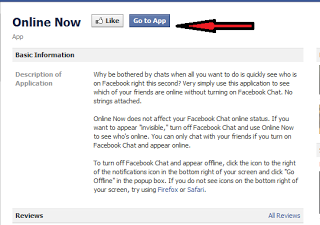
There is a simple trick by which you can know who is online on facebook when you are in offline mode.Just follow below steps.


1). Log in to your facebook account.

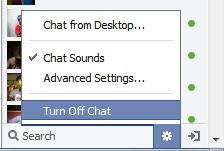
2). Turn off chat in your account.


3) Go to this application page and install it.


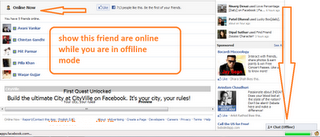
4) After install this application you able to show, who is online on facebook while you are offline on facebook account.


Now if you want to chat someone you can send him/her messages knowing that he/she  is online.

Chat in MS-DOS using IP address

It is easy and simple trick. using batch programming.


You can try this in your school or college systems(it should be networked systems).

Step 1: 
Get  the ip address of your friend's system.
if you are using college or school system,then ip address will be in particular range.

Step 2:
copy the following Batch code in notepad:

@echo off
:A
Cls
echo TypeIPAddress
set /p n=IPAddress:
set /p m=Message:
net send %n% %m%
Pause
Goto A

Save the file with .bat extension(For Eg: message.bat)

Step 3:
Open command prompt and navigate to that batch file location.
open the file in notepad.

If you don't know how to move to that path,simply drog and drop in cmd.Then hit enter.

Step 4:
Now it will ask you for the IPAddress.
Enter the IP address which you want to send message.
Hit enter
Now it will ask you for the message.
Enter and hit enter

Note:
The user with whom you connecting system's cmd should be opened in order to receive.

4 Easy Ways to Backup Your Gmail Account


Quite a while ago, Google had some server troubles and many people reported that their accounts were lost, or different kind of data was lost. Also, a few days ago, another breach in Google’s security caused the google.ro website to crash. Is it me, or is Google losing its touch? I certainly hope not, but just in case, I’ve decided to make a backup of my Gmail account, so that whatever happens, I know that my emails and attachments are safe.
However, when I started to look through the settings of my Gmail, I found no such feature that allows users to download the content of their Gmail to a local drive. I did, however, find the Gmail Offline Chrome extension that lets me view emails offline, but still, no proper backup utility. Therefore, I had to search for a few solutions to solve my problem.
gmail-backup

How to jailbreak your iOS 7.0.4 with evasi0n 7


evasi0n 7 has recently been updated with many fixes to both the jailbreak itself and to Cydia, which solve a lot of the concerns that kept us from recommending it until now. If you've been waiting patiently to jailbreak iOS 7.0.4, we can walk you through the entire process from start to finish. Here's everything you need to know!

Saturday, 2 June 2018

How to Clear Google Search History and Safeguard Your Privacy

“Google Privacy” – that sounds like an oxymoron, isn’t it? Whenever I think about it, I get scared to no end. My primary (and secondary and tertiary) search engine is Google, I use Google mail, my primary IM is Google Talk, I use Google apps for work, Google docs has kicked out MS Office on my PC, Google Chrome is my default browser and worst of all, my DNS provide is Google again. Add Google Reader, maps, News, Picasa and Youtube to the list, hardly 10% of my online life is sans Google.
Clear Google Search History


Does Google store every search I do?
Every time I start up my Chrome browser, I find that all the previous searches I have done are stored, whether from the Google search box or when I’m actually on the Google home page.


Google home page


No, it’s not Google who is storing the info, rather it is your browser.

How to Delete your Google Search History?

 Delete your Google Search History

The search box on the Google homepage displays query suggestions both from your own previous searches and other relevant queries. The second set of queries is powered by Google Auto Suggest. However, your previous searches, i.e your search history are stored by your browser, not by Google.
The below instruction is for deleting search history from the Google home page search box. This is if you manually type in Google.com address in your browser to perform the search.

Internet Explorer 8
1. Go to Tools menu
2. Select Internet Options
3. On General tab, click on the “Delete…” button from the Browsing History area.
4. Select the “Form Data” checkbox and click on “Delete” button to clear forms.

Firefox
1. Click the Tools menu.
2. Select Clear Private Data.
3. Select Saved Form and Search History.
4. Click the Clear Private Data Now button.

Google Chrome
1. Click on Tools (spanner icon)
2. Click on Options
3. Select Under the Hood tab.
4. Click on Clear browsing data
5. Select Clear saved form data
6. Click on Clear browsing data.

How to Clear your Google Toolbar history?

Clear your Google Toolbar history

To clear your search history in the drop-down search box on the Google Toolbar, follow these steps:

1. Click the arrow on the right-hand side of the Toolbar search box.

2. Click the Clear History link.
Better option is to stop saving search history on Google toolbar. To do this click on Tools icon and deselect “Store search history on my computer” and save it.

 How to Clear your Address bar History?

Clear your Address bar History


The browser’s address bar also acts as a search bar. And if you’ve set your default search engine to be Google, it acts like the Google toolbar also, even though it’s not.

Internet explorer
1. Click on Tools menu.
2. Click on Internet Options
3. Select the General tab
4. Click on the Clear History button
5. Confirm that you want your history deleted.
This will clear all of your history, including the list of places you’ve visited in the History window.

Firefox
1.Click the Tools menu.
2.Select Clear Private Data.
3.Select the ‘Browsing History’ option.
4.Click the Clear Private Data Now button.

Safari
1.Click the History menu.
2.Select Clear History.

Make use of Private Browsing option

Most of the browsers these days provide “private browsing” mode (or Incognito mode). That’s the best thing to opt for all the privacy freaks out here. Makes worrying about histories, caches, and similar all moot. Remember to turn on private browsing whenever you want to explore the net without leaving any sort of trail behind you.


Monday, 14 March 2016

What to do When Your Gmail Account is Full


According to Google, those 10 GB of free offered storage should be more than enough for an average person, who receives mails on a daily basis. Well, when one discovers that “average” is not exactly a word defining its personality, or its inbox, issues appear. Filling up 10 GB of space just with emails is not an easy task but, we’ve found that this happens, and usually to people who are unaware about why their Gmail account is getting filled up.
Technically, when your Google Mail Inbox is almost full, Gmail will bounce all incoming emails and will also stop the owner from sending any new messages, while completely taking control over the situation. Thus, filled Gmail accounts become useless due to storage issues and there are only a few good suggestions to get it back in a working stage.

Gmail is FULL? No problem

Too many emails

All Seeing Eye is a Chrome Add-on Runs Text Searches of Your Entire Browser History


We use our browsers daily and at a certain point, we might want to find that interesting website that we accessed a few months ago. But by using the default browser history is either too difficult or almost impossible to do that. That’s why this Chrome extension is so awesome. The All Seeing Eye add-on indexes all text in your Web history, letting you run text searches.
search google chrome
All Seeing Eye indexes all of the text of every page you visit in Chrome and even captures a screenshot of each page you visit for a quick visual search of your Web history. The default Web history tells you only the URL and title of each Web page you have visited but with the Chrome extension All Seeing Eye, your Web history expands to include all of the text of every page you have visited along with screenshots.
The moment after you install the All Seeing Eye from the Chrome Web Store, the extension starts indexing all of the text of every page you visit and capturs screenshots. So, when you select Show All History from Chrome’s History menu, the All Seeing Eye add-on will display a grid of thumbnails of the screenshots it has captured.
It’s possible to click on a screenshot to go directly to the page it represents or you can click on the magnifying glass icon to view an expanded version of the thumbnail in a new tab. If the screenshot doesn’t help, you can use the search bar at the top of the page to search by keywords.
All Seeing Eye doesn’t store your data in the cloud but on your machine. If you’ll enable Chrome’s Incognito mode for private browsing, then the add-on won’t be able to save the pages you’re visiting. Thus, with this add-on, whenever you need to revisit a page but can’t remember which one, just click History from the menu, enter a keyword and click Search.
All Seeing Eyerchives the last 10,000 pages you’ve visited, but there’s also a certain security risk here. Anyone else with access to your system can quickly learn the access to password-protected sites. However, indexed pages can be deleted with a click and you can enter specific domains on a blacklist.

Todoed Chrome Extension Simplifies Your Work by Converting Text into Tasks


If you are working online most of the time and also syncing up with colleagues, it is most likely that you would come across a lot of litter which would harm the productivity. As we are already aware, Internet can be a large ocean of distraction and managing your tasks and schedule is of prime importance. I have been using a handful of task managers and calendar apps over the years, and although they do help me on utility front, it sure takes some time to get about it.
todoed_

Download and Install Windows 7 XP Mode + Usage Guide


Windows 7 Launch is just around the corner with less than 2 days left and I am sure many of us are raring to upgrade your OS to Windows 7 very soon. Also, some of us are little skeptical of making a move right now since it is not clear if all the software they have installed on Windows XP or Windows Vista are compatible with Windows 7 as well.
windows-7-xp-mode
Not to worry, with the release of Windows 7 Professional and Ultimate editions, Microsoft is including a little utility called XP Mode. XP Mode is a virtual machine running Windows XP on Windows 7. Microsoft is giving us XP mode (XPM) as a means to having a fully modern computing environment (via Windows 7) without having to sacrifice legacy support (of Windows XP). Below is a simple usage guide to get started with XP mode.
windows-xp-mode

XP Mode on Windows 7 – Usage Guide

1. Enable Hardware Virtualization

First thing you need to do is, check if your CPU has hardware virtualization support enabled. This is a MUST HAVE for XP Mode to be enabled. To check if your CPU is supported, Intel and AMD both offer utilities to identify your CPU and what features it offers. If your CPU supports virtualization, this feature needs to be enabled in the BIOS.
Check if your Intel processor has hardware virtualization support enabled
Check if your AMD processor has hardware virtualization support enabled

2. Download and Install Windows Virtual PC and XP Mode

Download Windows Virtual PC and XP Mode from Microsoft
Note that XP Mode is a 472Mb file. So make sure you have enough space for installable and the software itself.
  • Install Virtual PC first and then the XP ModeXP mode first and then the Virtual PC. Both installations are straightforward.
  • Launch the XP Mode. Supply a password for local XP Mode user that XP Mode automatically creates on the virtual machine.
  • xpm-user
  • Turn ON or OFF the automatic updates option
When installation is complete XP Mode will launch in Desktop Mode. This is where you will have complete access to the XP environment. It is a completely separate desktop environment from your Windows 7 installation. Both Windows 7 and Windows XP will share a common clipboard and nothing else. This means you cannot drag and drop files/folders from one environment to another. Instead, you can share a USB device between the environments.
windows-7-xp-mode-shared

3. Seamless Mode

Seamless Mode lets you launch XP apps straight from your Windows 7 menus. In order to use Seamless Mode, install an app under Desktop Mode and then log out and close the virtual machine. The new app you just installed can now be found under Start Menu items of Windows 7 under All Programs –> Windows Virtual PC –> Windows XP Mode Applications.
windows-xp-seamless-mode
When the app is launched from Windows 7, XP launches in the background and it appears as if the app is running natively on Windows 7 itself.
It is important to note that XP mode is resource intensive. Running a virtual OS on top of your real OS takes up lots of CPU cycles and memory. Running on a 8GB of RAM, it works with great aplomb. Even 4GB RAM is Manageable. However, running with 1GB of RAM will prove to be somewhat frustrating.
Let me know if you have any doubts or if you have some tips regarding XP Mode.

Check If Your PC Can Run Windows XP Mode in Windows 7


Last week we had seen how to install and use XP Mode in Windows 7. I had mentioned that one must check if the CPU has hardware virtualization support enabled or not. I had posted links to Intel and AMD’s sites to do that. Luckily, Microsoft has come out with the Hardware-Assisted Virtualization Detection Tool to give the user exact information if Hardware-Assisted Virtualization is supported by the computer and if it is enabled in the Bios.
hardware-assisted-virtualization

Guide to Install Windows 8 on VirtualBox


Microsoft released a developer preview of Windows 8 last night and surprisingly made it available for general public too. Though this brand new OS is half-baked and is meant to be used by developers to build apps for Windows 8, it’s way too tempting for a non-developer to let go the opportunity to get the first taste of a hot & sexy OS.
Not to worry, we have a detailed yet simple guide to help you install and test-drive Windows 8 on your existing PC using a free to use virtualization software called VirtualBox. Though there are other VM (virtual machine) software like VMware Workstation and Virtual PC, I would advice you to go with VirtualBox as I have been getting reports of failed installations on VMware and Virtual PC, possible because Windows 8 requires IO APIC enabled to run on VMs, which is available only on VirtualBox.

[How to] Enable God Mode on Windows 8


I have been using Windows 8 as my secondary operating system with Ubuntu for a long time now and sometimes I find Windows 8 a bit confusing in terms of finding the settings and control panel. There are many windows which are to be opened to get into the main settings area. There was the God Mode feature in Windows Vista and Windows 7 when I used to use it where I had the control over all the settings in the operating system in a single window itself. I tried this method on Windows 8 and it worked out. Well if you are using Windows 7 or Windows 8 you can use this method and have better control over your PC/Laptop.

Windows 7 – GOD Mode


Over the last week or so, the buzz over the blogosphere is about a mysterious functionality discovered, unearthed, excavated within Windows 7 operating system called God Mode!
When I saw the tweets going viral on Twitter, the name implied much more powerful and potentially devious capabilities, as seen in most games these days. Instead, I found out that the “God Mode” folder for Windows 7 supplies just a tidy place to find nearly everything you can do within the Windows Control Panel.
Note: If you already know about Windows 7 God Mode, you can skip this post. I don’t have anything special to add here, this article is only for those who aren’t aware of Win 7 God mode.

How to Enable GoD Mode in Windows 7?

To access the special capabilities of the God Mode folder, create a new folder anywhere on your Windows 7 computer and name it:
GodMode.{ED7BA470-8E54-465E-825C-99712043E01C}
Once renamed, the icon will change to a control panel looking icon, and when opened you will be presented with a plethora of different tweaking options as shown in the image below.
cod-mode-windows-7

LockHunter – Instantly Unlock/Delete Locked Files


I am very sure that many a times when you try to open, delete or move a file or a folder, you get an error message saying it is already in use. Even after trying to close all the programs which you think might be using the file, it still throws up an error saying –
Cannot delete file: It is being used by another person or program. Close any programs that might be using the file and try again.
cannot-delete-folder

[How to] Unlock a File without Killing the Process in Windows


Note: This is a pretty old trick. So many of you might be knowing this already. But some are still unaware of this, hence I thought of letting them know.
I am very sure that many a times when you try to open, delete or move a file or a folder, you get an error message saying it is already in use. Even after trying to close all the programs which you think might be using the file, it still throws up an error saying –
“Cannot delete file: It is being used by another person or program. Close any programs that might be using the file and try again.”
cannot delete

USB Drive Data Recovery Software for FREE!


Any USB drive can suffer data loss due to several reasons like –
  • Bad sector infected USB storage media result in data loss.
  • Corrupted music files due to system failure.
  • Damaged images/photos because of power surges.
  • Recover data when pen drive is formatted accidentally.
  • Files/folders erasure even after using (Shift+Del) keys!
  • Virus generated data loss.
  • Software related problem.
DiskDigger USB Drive data recovery Software easily recovers all types of deleted data files including digital (image, pictures, photo, video clips) or music files (mp3, mp4, midi, wav etc). Beside the software retrieves documents like word document file, xls, DAT or .ppt file etc.

USB Drive Data Recovery Software supports all major branded USB drives like Transcend, Sony, Kingmax, Kingston, Jet flash, Super Media, Super Flash, Apacer, AVB etc. Even the files/folders with long names can be recovered easily.
DiskDigger can be used to recover data from any internal or external hard drives. But I suggest that it to be used to recover data from smaller drives since it includes all found files in the results (including non-deleted); hence not efficient for large internal drives.
Download DiskDigger – Free USB data Recovery software
This Flash drive recovery software works only on Windows and is completely FREE to use!

How to Retrieve Data from Scratched DVD’s & CD’s


Many of you must have encountered situations where in you need to copy/retrieve data from those DVD’s and CD’s which are scratched. If so you might have received an error message stating that the file could not be copied because it is corrupt, but there might still be hope if you really need to access the contents.
Copy Cat 2.0 is a free application designed for recovering files from media that has been partially damaged. As long as you can see the file in Windows Explorer this program can attempt to copy it over. What makes this special is that when it comes across an unreadable area it will skip over it and try to copy the remaining portion of the file. Windows Explorer, on the other hand, will stop copying the file once it receives an error.
cc
The great thing about the program is that it works for more than just CD’s or DVD’s. You can actually use it with hard drives, USB drives, floppy disks, and just about anything else you can store data on.
Get Copy Cat 2.0 for Windows
Note: During installation it will ask if you want to install a toolbar in Internet Explorer. You’ll probably want to uncheck the box to make sure it doesn’t.

How to Fix Damaged ZIP Files?


Ever encountered Damaged ZIP files? I am sure each and everyone of you has experienced getting an error like “Cannot open file: it does not appear to be a valid archive” when trying to open a Zip-compressed file. If you regularly download compressed files off the Internet, then you must have seen this error many times.
This error comes when the compressed file is damaged or corrupted. I have tried repairing such archives with the built in WinZip repair tool, but that has never helped me. DiskInternals ZIP Repair helps repair zip structure and extract the contents of a damage or corrupted archive.
diskinternals

[How To] Reduce Power Consumption on Your PC: Detailed Guide


Every month I fear the day when the mailman brings the bills, and the one bill I fear the most is the electrical bill. This is the one that usually emptied my pocket, and for that reason I started looking towards ways to reduce the power drain in my house. Apart from the usual things: fridge, microwave, TV and others, the biggest power drainer is my PC.
pc power consumption

Detailed Guide: Which Desktop PC Should I Buy?


Consumer technology is growing at an incredible pace; we now have smartphones that can do pretty much everything what a computer 10-15 years ago used to do and even much more than that. An advanced phone or tablet can replace your video and photo camera, GPS device, gaming console and with the help of hundreds of applications you can have all the information that you need. However, these devices are not that good for production, they are more suitable for consumption. As versatile as a tablet or smartphone couldn’t get, it can’t yet match the comfort and the safety of working from your desktop PC.
Of course, a laptop or netbook can be equally good, since their main contribution is that you can take your office everywhere with you. Nevertheless, most of your available time is being spent in front of your stationary personal computer. That is, if your job consists in doing so. But, let’s face it, who doesn’t spend hours in their office, working in front of a computer? It has become a vital part of our daily lives, being responsible for many of the tasks that we have to accomplish.
which-pc-to-buy